Gmail IMAP and SMTP Settings (2026): Complete Setup Guide with Ports, App Passwords, and Fixes
Set up Gmail IMAP and SMTP in 2026 with the correct server addresses, ports, and encryption settings. Learn how to use Sign in with Google or app passwords, fix common authentication errors, understand Gmail sending limits, and secure your email connection with this step-by-step guide.
On this page
- 1. Gmail IMAP and SMTP Settings: Quick-Reference Table
- 2. Gmail Server Configuration
- What these settings mean
- 3. Step 1: Enable 2-Step Verification
- Why This Is a Prerequisite for App Passwords
- Step-by-Step Instructions
- 4. Step 2: Generate an App Password
- What Is an App Password?
- Step-by-Step Walkthrough
- Store the App Password Safely
- 5. Step 3: Configure Your Email Client
- General Setup Principles
- Outlook Setup
- Apple Mail Setup
- Thunderbird Setup
- The Core Difference
- When to Use Each
- Security Implications: Why OAuth Wins
- Why Sending Limits Matter for Business Users
- Daily Sending Limits: Free Gmail vs. Google Workspace
- Per-Message Recipient Caps
- What This Means for Business Outreach
- 1. “Authentication Failed” or “Invalid Credentials”
- 2. “Cannot Connect to Server” or Connection Timeout
- 3. The “Enable IMAP” Option Is Missing
- 4. Wrong Port or Encryption Setting
- 6. Security Best Practices for Gmail IMAP and SMTP
- Revoke App Passwords Regularly
- Prefer OAuth Over App Passwords
- Protect the Google Account Itself
- 7. Gmail IMAP and SMTP Settings — 2026 Cheat Sheet
- 8. Server Settings
- 9. Choose Your Sign-In Method
- 10. Quick Troubleshooting
- 11. Security Reminder
- 12. Official References
- 13. Frequently Asked Questions (FAQs)
- 1. What are the correct Gmail IMAP and SMTP settings in 2026?
- 2. What is the Gmail IMAP server address?
- 3. What is the Gmail SMTP server address?
- 4. Why can't I find the “Enable IMAP” option in Gmail?
- 5. Can I use my normal Gmail password for IMAP or SMTP?
- 6. How do I generate a Gmail app password?
- 7. Why does Gmail say “Authentication Failed” or “Invalid Credentials”?
- 8. Should I use port 587 or 465 for Gmail SMTP?
- 9. What should I do if Gmail cannot connect to the mail server?
- 10. What is the difference between Gmail IMAP and POP?
- 11. Is OAuth safer than a Gmail app password?
- 12. What are Gmail's daily sending limits?
- 13. Can I use Gmail SMTP for business email?
- 14. How do I test whether my Gmail IMAP and SMTP settings work?
- 1. What are the correct Gmail IMAP and SMTP settings in 2026?
- 2. What is the Gmail IMAP server address?
- 3. What is the Gmail SMTP server address?
- 4. Why can't I find the “Enable IMAP” option in Gmail?
- 5. Can I use my normal Gmail password for IMAP or SMTP?
- 6. How do I generate a Gmail app password?
- 7. Why does Gmail say “Authentication Failed” or “Invalid Credentials”?
- 8. Should I use port 587 or 465 for Gmail SMTP?
- 9. What should I do if Gmail cannot connect to the mail server?
- 10. What is the difference between Gmail IMAP and POP?
- 11. Is OAuth safer than a Gmail app password?
- 12. What are Gmail's daily sending limits?
- 13. Can I use Gmail SMTP for business email?
- 14. How do I test whether my Gmail IMAP and SMTP settings work?
Last verified: October 12, 2026
Author: Usman Ali, IT administrator with 14 years of experience configuring Gmail for business users.
The Missing Toggle That Started It All
You opened Gmail settings to find the Enable IMAP option. It was not there. You checked another menu, searched online, and found three guides telling you to click a button that no longer exists.
You are looking in the right place. Google removed the option to enable or disable IMAP for personal Gmail accounts starting in January 2025. IMAP remains enabled, so you do not need to turn it on manually. If you use a Google Workspace business account, your administrator may still control IMAP access through the Admin console. <Cite refs={["turn908567search1","turn908567search10"]} />
Then comes the second problem. You enter your email address and your normal Gmail password into Outlook, Apple Mail, or Thunderbird. Gmail rejects it. You try again, check for typing mistakes, and get the same error.
Your password may be correct. The sign-in method may be the problem.
Google retired password-only access for less secure third-party apps in 2025. Modern email clients should use Sign in with Google, which lets an app connect to your account without asking for your normal Gmail password. Older apps and certain devices may still work with an app password, but only when your account and the device meet Google's requirements. <Cite refs={["turn908567search3","turn908567search5"]} />
This guide brings the setup process together in one place. You will get a copy-and-paste table of Gmail's incoming and outgoing mail server settings, including the correct ports and encryption options. You will learn how to generate an app password when one is appropriate, connect Gmail to your email client, and decide when Sign in with Google is the better choice.
We will also cover the errors that commonly stop setup, from rejected passwords to connection failures. Each step is explained in plain English, so you do not need to understand email protocols before you begin.
The goal is simple: get Gmail working in your email app without weakening your account security or wasting an afternoon trying settings that no longer apply.
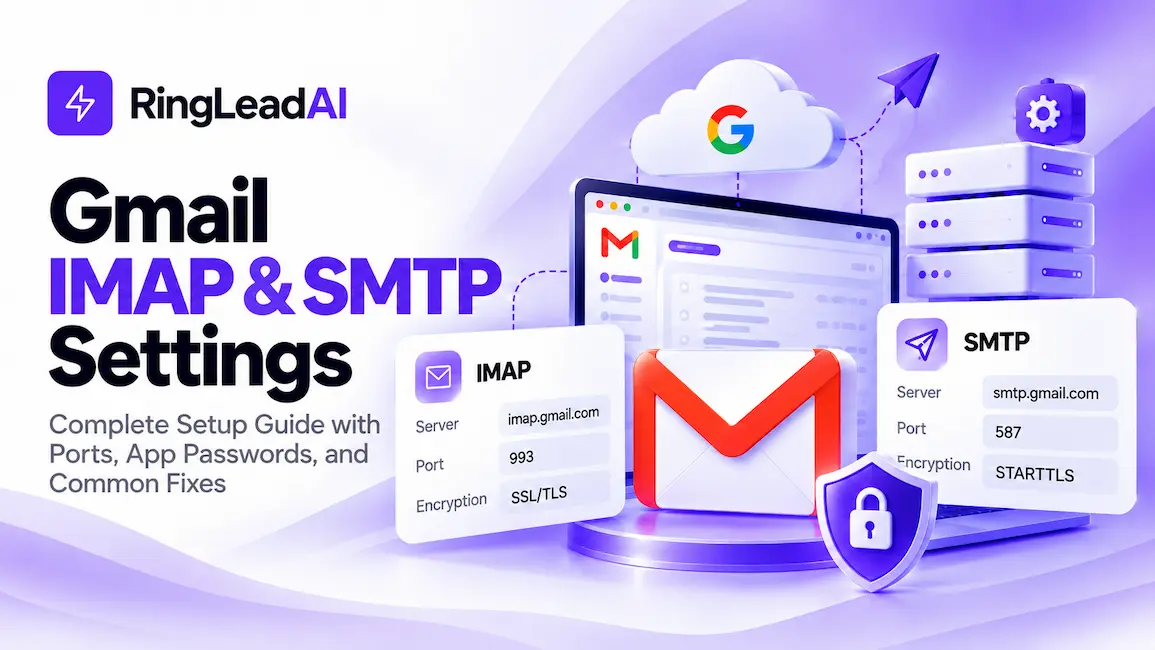
#Gmail IMAP and SMTP Settings: Quick-Reference Table
Use the settings below when connecting Gmail to Outlook, Apple Mail, Thunderbird, or another compatible email client. Choose the settings for the protocol you want to use, then follow the authentication instructions in the sections below.
#Gmail Server Configuration
Standard incoming and outgoing connection parameters for configuring custom email clients and automated dispatch tools.
| Protocol & Type | Server Hostname | Port | Encryption |
|---|---|---|---|
| IMAP Incoming | imap.gmail.com | 993 | SSL / TLS |
| POP Incoming | pop.gmail.com | 995 | SSL / TLS |
| SMTP Outgoing | smtp.gmail.com | 587 | STARTTLS |
| SMTP Outgoing Fallback | smtp.gmail.com | 465 | SSL |
Authentication required: Use your full email address and an App Password.
Expert tip: Use port 587 with STARTTLS as your default for outgoing mail. If your email client or network requires a connection secured with SSL from the start, try port 465 with SSL instead.
#What these settings mean
IMAP keeps your email synchronized between Gmail and your email app. When you read, send, or organize messages, the changes generally sync across your devices.
POP downloads messages from Gmail to an email app. Its behavior differs from IMAP, and it may not keep folders and read status synchronized across devices. Choose POP only if you specifically need it and have checked Gmail's POP settings.
SMTP is the protocol your email app uses to send outgoing messages. The incoming and outgoing servers are separate, so entering the correct IMAP settings alone will not fix a sending problem.
SSL/TLS and STARTTLS are methods of encrypting a connection so that email traffic is protected while it travels between your device and the mail server. Your email client may display the encryption options with slightly different labels. Match the security method to the selected port.
What This Means for Your Gmail Setup
You have two practical choices: use Sign in with Google if your email client supports it, or create an app password if the client cannot use Google's sign-in method and your account allows app passwords.
Do not keep entering your normal Gmail password into an older email client and hoping it will eventually work. If the client uses an unsupported sign-in method, changing the server settings will not solve the authentication problem.
The steps below cover both options. Start with 2-Step Verification if you need an app password. If your email client offers Sign in with Google, use that instead.
#Step 1: Enable 2-Step Verification
#Why This Is a Prerequisite for App Passwords
Google requires 2-Step Verification to be enabled before you can create an app password. If you visit the App Passwords page without meeting this requirement, you may not see the option to create one.
2-Step Verification adds another check to your sign-in process. Instead of relying only on your password, Google asks you to verify your identity using an additional method.
Expert tip: Turn on 2-Step Verification first. The app password option depends on it, but not every account that has 2-Step Verification enabled will be eligible for app passwords.
#Step-by-Step Instructions
- Open Google Account Security and sign in with your Gmail account.
- Find the section labelled How you sign in to Google.
- Select 2-Step Verification.
- Select Get started if the option appears, then follow Google's instructions.
- Choose one of the verification methods Google offers for your account. These may include Google prompts, an authenticator app, or text-message verification.
- Complete the verification steps and confirm that 2-Step Verification is turned on.
The exact screens can vary depending on your account and the security methods you already use. Follow the prompts displayed by Google rather than relying on an older screenshot.
If 2-Step Verification is already enabled, skip this section.
For a Google Workspace account managed by your employer, your administrator may control whether 2-Step Verification is required or available. If you cannot change the setting, contact your administrator rather than trying to work around the restriction.
Visual suggestion: Add a genuine screenshot of the 2-Step Verification screen from a test or personal account. Hide the email address, recovery details, security keys, and any other private information. Do not use a screenshot containing a live verification code.
#Step 2: Generate an App Password
#What Is an App Password?
An app password is a 16-character passcode generated by Google. It lets a compatible app or device access your Google Account when that app cannot use Sign in with Google.
It is different from your normal Gmail password. You cannot use it to sign in to the Google Account website as if it were your regular password.
An app password is also a security-sensitive credential. Anyone who obtains it may be able to access the account through the app or service using it. Give it the same care you would give any password.
Google recommends using Sign in with Google whenever possible. Create an app password only when the app or device does not support that option and your account is eligible. Google's official app password instructions explain the requirements and limitations.
#Step-by-Step Walkthrough
- Open Google's official App Passwords page.
- Sign in again if Google asks you to verify your identity.
- If prompted to name the app, enter a label that will help you recognize the connection later, such as
Outlook desktoporThunderbird. - Select Create or follow the creation option shown on your screen.
- Google will display the generated app password.
- Copy it and enter it into the password field of the email client you are configuring.
The exact labels and layout may change. Follow the options currently shown on Google's official page.
Important: Google may display the app password only when it is generated. Copy it before closing the screen. If you lose it, generate a replacement rather than trying to recover it from Google.
If the App Passwords page says the option is unavailable, check the reason before continuing. Google lists several possible restrictions, including accounts protected by Advanced Protection, accounts using only security keys for 2-Step Verification, and some work or school accounts controlled by an administrator.
Do not assume that enabling 2-Step Verification guarantees access to app passwords.
#Store the App Password Safely
If you are setting up your email client immediately, paste the passcode directly into its password field. If you may need it again, store it in a trusted password manager rather than writing it on a sticky note or saving it in an unprotected text file.
You can give the generated password a useful label so you know which connection it was created for. The label helps you manage your credentials; it does not technically restrict the password to that named app.
If you change your Google Account password, Google revokes existing app passwords. You will need to create a new one for any connection that still relies on an app password.
#Step 3: Configure Your Email Client
#General Setup Principles
Whether you use Outlook, Apple Mail, or Thunderbird, manual email configuration relies on the same connection details.
The incoming server receives messages for your email client. The outgoing server sends messages from it. A port is a numbered communication endpoint that tells the app which service to connect to. Encryption protects the connection while data travels between your device and the server.
Use the values in the quick-reference table earlier in this guide:
- Incoming IMAP server:
imap.gmail.com - Incoming port:
993 - Incoming encryption: SSL/TLS
- Outgoing SMTP server:
smtp.gmail.com - Outgoing port:
587 - Outgoing encryption: STARTTLS
- Username: Your full Gmail address
If you choose manual authentication with an app password, enter that passcode instead of your normal Gmail password. If the client supports Sign in with Google, use Google's sign-in window instead.
Not every version of every email client presents the same screens. The instructions below distinguish modern Google sign-in from manual configuration where necessary.
#Outlook Setup
Microsoft Outlook has different interfaces depending on whether you use new Outlook or classic Outlook for Windows. The menu names may differ, so first identify which version you have.
#Recommended method: Sign in with Google
- Open Outlook and choose the option to add an account.
- Enter your full Gmail address and continue.
- When Outlook opens Google's sign-in window, confirm the account you want to connect.
- Sign in through Google and approve the requested permissions if you trust the application.
- Return to Outlook and wait for your messages to synchronize.
For new Outlook, account management is generally under View settings → Accounts → Your accounts. In classic Outlook, start with File → Add Account. Microsoft's official Gmail setup guide provides instructions for both interfaces.
#If manual IMAP setup is necessary
Use manual setup only if your Outlook version and account configuration support the required authentication method.
- In classic Outlook, select File → Add Account.
- Enter your Gmail address and open Advanced options if available.
- Select the option to set up the account manually, then choose IMAP.
- Enter
imap.gmail.com, port993, with SSL/TLS for incoming mail. - Enter
smtp.gmail.com, port587, with STARTTLS for outgoing mail. - Enable outgoing-server authentication if requested.
- Enter your full Gmail address as the username and use an app password if this manual sign-in method is supported and required.
If Outlook offers Google's sign-in window, return to that option instead of forcing manual password authentication. Microsoft documents that older Outlook versions may not support the modern Gmail sign-in process, so updating Outlook may be necessary.
#Apple Mail Setup
Apple Mail on macOS supports adding Google accounts through Google's sign-in process. This should be your first choice.
#Recommended method: Add Google directly
- Open Mail on your Mac.
- Select Mail → Add Account.
- Choose Google, then select Continue.
- Enter your Gmail address in Google's sign-in window.
- Complete authentication and approve the requested permissions.
- Select the Google services you want to use, ensuring Mail is enabled, and finish setup.
This method lets Apple Mail authenticate through Google instead of relying on a manually entered password. Google's third-party email client setup guidance describes the Google account setup process for Apple Mail.
#If manual IMAP setup is required
- Open Mail → Add Account.
- Select Other Mail Account if you need manual configuration.
- Enter your name, Gmail address, and the app password if your account and version of Mail support this method.
- Enter
imap.gmail.comon port993with SSL/TLS for incoming mail. - Enter
smtp.gmail.comon port587with TLS/STARTTLS for outgoing mail. - Confirm that outgoing mail uses authentication and your full Gmail address as the username.
The exact encryption label may differ between macOS versions. Match the security method to the port and the options available in your version.
Expert tip: If Apple Mail lets you add the account by selecting Google, use that method instead of manually entering a password. Remove and re-add an older password-configured account if necessary to switch it to Google's supported sign-in method.
#Thunderbird Setup
Mozilla Thunderbird can connect to Gmail using Google's sign-in process. For current versions, automatic account setup is usually the simplest route.
#Recommended method: Automatic setup with Google authentication
- Open Thunderbird.
- Open Account Settings and select Account Actions → Add Mail Account. Depending on your version, you may also see an option to add an account from the main screen.
- Enter your name, full Gmail address, and the requested account details.
- Allow Thunderbird to detect the server settings.
- When prompted for authentication, choose OAuth2 or the Google sign-in option if displayed. OAuth2 is the authentication method behind Sign in with Google.
- Complete the Google sign-in window and approve the requested access.
If you see a choice between OAuth2 and Normal password for a Gmail server, choose OAuth2 for a modern setup. Do not choose Normal password and enter your regular Gmail password.
#Check the server settings
If Thunderbird displays the connection settings, confirm that they match the quick-reference table:
- Incoming IMAP:
imap.gmail.com, port993, SSL/TLS. - Outgoing SMTP:
smtp.gmail.com, port587, STARTTLS.
Keep OAuth2 selected for authentication when it is available. If Thunderbird repeatedly asks for your password, check that the account is using OAuth2 and that no outdated saved password is being reused.
For official guidance, see Mozilla's Thunderbird support documentation. If you are using an older Thunderbird version that cannot authenticate with Google, update it before considering an app password.
One final distinction: An app password is not automatically required for Outlook, Apple Mail, or Thunderbird. Modern versions can use Google's sign-in method. Use an app password only for a compatible setup that genuinely needs one and is permitted by your account.
App Password vs. OAuth: Which Should You Use?
Both OAuth and app passwords let an email client access Gmail without relying on the old password-only sign-in method. The difference is how access is granted and how you manage the security risk.
#The Core Difference
OAuth, shown as “Sign in with Google,” is the preferred option. Your email client opens a Google sign-in window. You sign in directly with Google and approve the access requested by the app. Your normal Gmail password is not handed to the email client.
OAuth is an authorization method. In plain English, it lets you grant an app permission to access your account without giving the app your main password. The app receives a token, which is a digital credential used to maintain that authorized access.
An app password works differently. Google generates a separate, 16-character passcode that a compatible email client can use to connect to your account. It is easier to understand than the technical details of OAuth, but it is still a reusable credential that must be protected.
The key difference is security management. OAuth access can be revoked through your Google Account without changing your normal Gmail password. An app password can also be revoked, but anyone who obtains it may be able to use it to access your account through a compatible connection until it is revoked or otherwise invalidated.
#When to Use Each
#Use OAuth (“Sign in with Google”) when:
- Your email client offers it. Choose Google's sign-in option in current versions of Outlook, Apple Mail, Thunderbird, and compatible mobile apps.
- You want stronger credential protection. Your normal Gmail password stays with Google rather than being entered into the email client.
- You are configuring a computer or phone you control. You can review the permissions you grant and remove access later if you stop using the app.
- You want easier account management. You can review connected apps and revoke access without changing your main password.
For most business users, OAuth should be the default. If your email app offers a Google sign-in window, use it rather than searching for an app password.
#Use an app password when:
- Your email client does not support OAuth. This may apply to older software or certain third-party applications.
- A compatible device requires password-based authentication. Some older devices and tools cannot open Google's sign-in window.
- You have a specific legacy integration to maintain. An older application may require an app password, provided Google permits that access for your account.
Be more cautious with scripts and server-side applications. An app password is not automatically the right solution just because a script sends email. If the application supports Google's recommended OAuth method, use it. For business systems, follow your administrator's security policy and use an authentication method designed for that integration.
Your account must also be eligible for app passwords. Enabling 2-Step Verification does not guarantee that Google will make the option available.
#Security Implications: Why OAuth Wins
An app password is static, meaning it remains the same until you revoke or replace it. If someone copies it from an unsecured file, obtains it from a compromised device, or finds it in a shared document, they may be able to use it to access your Gmail through a compatible connection.
OAuth reduces that risk by avoiding the need to store your normal Gmail password in the email client. Access is represented by tokens, and you can revoke the application's authorization through your Google Account. OAuth does not make an account invulnerable, however. A compromised device or stolen session token can still create a security risk.
Think of it this way: an app password is like a spare key you must keep secure. OAuth is closer to granting an application specific access that you can manage and withdraw.
Neither method removes the need for basic security. Keep your operating system and email client updated, protect your Google Account with 2-Step Verification, and remove access for apps you no longer use.
Expert tip: Prefer Sign in with Google (OAuth) whenever your email client supports it. Use an app password as a fallback for a specific compatibility problem, not as your default setup method.
For further reading, consult Google's official guidance on app passwords and OAuth 2.0. These explain the account requirements and technical authorization process behind the two methods.
Gmail Sending Limits and Quotas
#Why Sending Limits Matter for Business Users
Gmail limits how much email you can send to help prevent spam and protect accounts from abuse. These limits matter if you use Outlook, Apple Mail, Thunderbird, or another email client to send business messages.
The important detail is that message limits and recipient limits are not the same thing.
For example, one email addressed to 20 people is one message, but it involves 20 recipients. Google counts recipients toward recipient-based limits, while daily message limits are tracked separately. Your account type and the way you send email determine which restrictions apply.
Expert tip: Check both the daily sending limit and the per-message recipient limit before sending to a large group. Staying below one limit does not guarantee that you are below the other.
#Daily Sending Limits: Free Gmail vs. Google Workspace
Google publishes different limits for personal Gmail accounts and Google Workspace accounts. The following figures are from Google's published guidance; actual restrictions can vary by sending method, account status, and service.
| Limit type | Free Gmail | Google Workspace |
|---|---|---|
| Daily sending limit | 500 outgoing messages | Up to 2,000 messages per user account |
| Trial account limit | Not applicable | 500 messages per day |
| Recipients in one message through Gmail in a browser | More than 500 recipients can trigger a sending-limit error | Up to 2,000 total recipients, with a maximum of 500 external recipients |
| Recipients in one message sent through SMTP by an IMAP/POP email client | Do not assume the browser limit applies | 100 recipients per message |
| Daily total recipient limit | Subject to Google's sending restrictions | Up to 10,000 recipients per user under the published Workspace limits |
Sources: Google's personal Gmail sending limits and Google Workspace Gmail sending limits.
Important: The 2,000-recipient figure for Workspace applies to a message sent through Gmail's web interface. If you send through Outlook, Thunderbird, Apple Mail, or another client using SMTP with an IMAP/POP account, Google's published limit is 100 recipients per message. Do not confuse the browser limit with the email-client limit.
Google Workspace trial accounts also have lower sending limits. Your account may not qualify for the standard limits immediately, even after you start paying for a subscription.
#Per-Message Recipient Caps
The number of people you can include in one email depends on how you send it.
For a personal Gmail account, Google's published help page warns that sending one email to more than 500 recipients can trigger a sending-limit error. It also warns that sending more than 500 emails in a day can block further sending temporarily.
For Google Workspace, the limits differ by method:
- Gmail in a browser: Up to 2,000 recipients per message, with no more than 500 external recipients.
- SMTP through an IMAP/POP email client: Up to 100 recipients per message under Google's published limits.
- Daily Workspace sending: Up to 2,000 messages per user account, with separate recipient-based limits.
The To, Cc, and Bcc fields all count toward the relevant recipient cap. Adding recipients through Bcc does not bypass the limit.
If Gmail blocks sending after you reach a limit, Google says access to sending may return within 1–24 hours for the personal Gmail limit error. Avoid repeatedly retrying the same large send while the restriction is active.
#What This Means for Business Outreach
Google Workspace offers higher published sending limits than a standard personal Gmail account, but a larger quota is not permission to send unsolicited bulk email. Gmail's spam protections still apply, and suspicious sending activity can result in messages being rejected or an account being restricted.
If you need to send legitimate business messages to multiple recipients, choose the appropriate account and sending method, keep recipient lists accurate, and follow Google's sender guidelines. For high-volume marketing or cold outreach, use a platform designed for that purpose rather than treating Gmail as a bulk-mail system.
Expert tip: Upgrade to Google Workspace when you need a business email account and its associated features—not simply to push more cold emails through Gmail. A higher sending limit does not guarantee delivery or protect an account from spam-related restrictions.
Troubleshooting Common Gmail IMAP and SMTP Errors
If Gmail stops connecting to Outlook, Apple Mail, Thunderbird, or another email client, check the authentication method first. If sign-in succeeds but the connection times out, investigate the server settings and network instead. Use the fixes below to identify the cause without changing settings unnecessarily.
#1. “Authentication Failed” or “Invalid Credentials”
This error does not always mean your Gmail password is wrong. The email client may be using a sign-in method that Google no longer accepts, or your account's security policy may prevent the connection.
How to fix it:
- Check the sign-in method. If your email client supports Sign in with Google, remove the failed account if necessary and add it again using Google's sign-in window. Enter your normal Gmail password only on Google's genuine sign-in page.
- Check 2-Step Verification. If you are using an app password, confirm that 2-Step Verification is enabled on your Google Account.
- Generate a new app password if needed. Visit Google App Passwords, sign in, and create a new password if the option is available.
- Replace the saved password. In your email client's account settings, enter the new app password in the password field. Do not enter your normal Gmail password when the client specifically requires an app password.
- Check account restrictions. App passwords are not available for every account. Advanced Protection, certain security-key-only configurations, and work or school account policies may prevent their use.
Google displays app passwords in groups for readability. Copy the generated value carefully and follow your email client's input instructions; if the client expects the passcode without spaces, remove the displayed spacing.
Expert tip: Prefer Sign in with Google when your email client supports it. Use an app password only when the client needs one and your account is eligible. Enabling 2-Step Verification does not mean every application must use an app password.
Official guidance: Sign in with app passwords.
#2. “Cannot Connect to Server” or Connection Timeout
A timeout usually means the email client cannot establish a connection to the mail server. Incorrect server details, firewall rules, VPN settings, or network restrictions can all cause this problem.
How to fix it:
- Verify the server details. Incoming IMAP should use
imap.gmail.comon port993with SSL/TLS. Outgoing SMTP should usesmtp.gmail.comon port587with STARTTLS or port465with SSL. - Try the alternative SMTP port. If port
465fails, try587with STARTTLS. If587fails, try465with SSL. Make sure the encryption setting matches the selected port. - Test another network. Temporarily connect through a mobile hotspot. If the email client works on the hotspot but not on your usual network, the original network may be blocking or interfering with the connection.
- Check firewall and VPN settings. A corporate firewall, security application, or VPN may restrict outbound mail connections. Ask your network administrator to check the rules if you use a managed device or office network.
- Confirm that the account can connect through Gmail directly. Open Gmail in a browser. If it works there but not in the email client, focus on the client configuration, authentication method, and network connection.
Expert tip: If SMTP fails on port 587 or 465, check the network and firewall before repeatedly changing your Gmail password. A timeout is not, by itself, evidence of an authentication problem.
#3. The “Enable IMAP” Option Is Missing
If you cannot find an “Enable IMAP” toggle in Gmail settings, this is expected for personal Gmail accounts. Google removed that setting in January 2025, and IMAP is enabled by default for personal Gmail accounts.
You do not need to enable IMAP manually to connect a supported email client. Instead, add the account using Sign in with Google whenever possible. If you are setting up a compatible legacy client with an app password, you can still use Gmail's IMAP server settings.
For Google Workspace accounts, an administrator may restrict IMAP access through organizational settings. If you use a work or school account and the connection fails, ask your administrator to confirm that IMAP access is permitted.
How to proceed:
- For Outlook, Apple Mail, or Thunderbird, try the provider's Google account sign-in option first.
- If you must configure the account manually, enter
imap.gmail.com, port993, and SSL/TLS. - If the account is managed by your employer or school, check whether the administrator allows IMAP connections.
Expert tip: Do not waste time searching for the old IMAP toggle in a personal Gmail account. Check the authentication method and, for managed accounts, the administrator's access policy instead.
#4. Wrong Port or Encryption Setting
An incorrect port or mismatched encryption setting can prevent the email client from connecting even when the server address and password are correct.
Use this checklist to verify your configuration:
- Incoming mail (IMAP):
imap.gmail.com - IMAP port:
993 - IMAP security: SSL/TLS
- Outgoing mail (SMTP):
smtp.gmail.com - SMTP port:
587 - SMTP security: STARTTLS
- Alternative SMTP port:
465 - Alternative SMTP security: SSL
- Outgoing authentication: Enabled if requested by the client, using your full Gmail address and the appropriate Google sign-in or app-password method.
If your email client automatically detects different values, open its advanced account settings and compare them with Google's published configuration. Do not select SSL for port 587 or STARTTLS for port 465 simply because the options appear in the menu; use the encryption mode that matches the selected port.
If the values are correct but the connection still fails, return to the authentication and network checks above. Avoid changing multiple settings at once, because that makes the cause harder to identify.
For reference, consult Google's Gmail setup instructions.
#Security Best Practices for Gmail IMAP and SMTP
Correct server settings help Gmail connect, but protecting your Google Account is just as important. An email client may store credentials for months or years, so review how each application accesses your account and remove access you no longer need.
#Revoke App Passwords Regularly
An app password can allow a compatible email client or device to access your Gmail account. If someone obtains that password, they may be able to use it to access your account through a supported connection. Revoke unused or potentially exposed app passwords, especially when a device is lost, an employee leaves the company, or you suspect credentials have been compromised.
How to revoke an app password:
- Open Google App Passwords and sign in to your Google Account.
- Review the app passwords available in your account.
- Select the password you want to remove and choose the option to revoke or delete it. The exact interface may vary.
- If the associated email client still needs access, create a replacement app password if your account is eligible, then update the saved credentials in that client.
Revoking an app password stops that credential from being used for future authentication. It does not necessarily remove every existing session or credential associated with the account, so investigate further if you suspect unauthorized access.
Expert tip: Revoke app passwords promptly when a device is lost or an employee leaves. For routine maintenance, review them periodically and remove credentials that are no longer needed rather than creating replacements without a reason.
#Prefer OAuth Over App Passwords
When an email client supports Sign in with Google, use it instead of manually entering an app password. This sign-in method uses OAuth, an authorization system that lets an application obtain permission to access your account without receiving your normal Google password.
OAuth is generally the better default for business users because you can review and revoke an application's access through your Google Account. You also avoid maintaining a separate, static app password for that connection.
To review or remove access, visit Google Account Security and check the section for third-party connections or apps and services with account access. The exact label may vary. Removing an application's access can stop its Gmail connection, so confirm that you no longer need it before revoking permission.
OAuth does not eliminate every security risk. A compromised device or stolen active session can still expose account data. Keep devices updated, protect them with a screen lock, and revoke access you no longer trust.
Expert tip: Make Sign in with Google your default for Outlook, Apple Mail, Thunderbird, and other compatible clients. Treat app passwords as a fallback for legacy applications or devices that cannot use OAuth.
#Protect the Google Account Itself
Your Gmail connection is only as secure as the Google Account behind it. Apply these basic protections to reduce the risk of unauthorized access:
- Use a strong, unique password. Do not reuse your Google password on other websites. A password manager can help you create and store a different password for each service.
- Enable 2-Step Verification. This adds another verification step when signing in. Where available and practical, use a passkey or an authenticator app rather than relying only on SMS codes. Follow your organization's security policy if the account is managed.
- Review connected apps regularly. Visit Google Account Security to check third-party access and remove applications you no longer recognize or use.
- Review account activity and devices. Look for unfamiliar sign-ins or devices. If something looks suspicious, secure the account and follow Google's account-recovery and security guidance.
- Act quickly if credentials are exposed. Revoke affected app passwords, remove suspicious third-party access, and change your Google password if you believe it has been compromised. Remember that Google revokes app passwords when you change your main account password, so legitimate legacy clients may need to be configured again.
For business accounts, also make sure access is removed when staff leave and that shared devices or mailboxes are handled according to company policy.
The goal is not just to get Gmail working. It is to keep the connection secure, limit unnecessary access, and make it easy to remove access when circumstances change.
#Gmail IMAP and SMTP Settings — 2026 Cheat Sheet
#Server Settings
| Protocol | Server | Port | Encryption |
|---|---|---|---|
| IMAP — incoming | imap.gmail.com | 993 | SSL/TLS |
| POP — incoming | pop.gmail.com | 995 | SSL/TLS |
| SMTP — outgoing | smtp.gmail.com | 587 | STARTTLS |
| SMTP — alternative | smtp.gmail.com | 465 | SSL |
Recommended default: Use IMAP for incoming mail and SMTP port 587 with STARTTLS for outgoing mail, unless your email client or network requires another supported configuration.
#Choose Your Sign-In Method
Option A — Sign in with Google (recommended)
- Open your email client's Add Account screen.
- Select Google or Sign in with Google.
- Complete Google's sign-in and authorization prompts.
Option B — App password (eligible accounts only)
- Enable 2-Step Verification: https://myaccount.google.com/security
- Open https://myaccount.google.com/apppasswords
- Generate an app password if the option is available.
- Enter it in your email client's password field when prompted for an app password.
Important: When using an app password, enter the generated app password—not your normal Gmail password. If your client supports Sign in with Google, use that method instead.
#Quick Troubleshooting
- Authentication failed: Check the sign-in method and saved credentials.
- Connection timed out: Verify the server, port, encryption, firewall, and network.
- Missing “Enable IMAP” toggle: Expected for personal Gmail accounts; IMAP is enabled by default. Workspace administrators may restrict access.
- SMTP not working: Try port 587 with STARTTLS or port 465 with SSL, ensuring the encryption matches the port.
#Security Reminder
Use a strong, unique Google password and enable 2-Step Verification. Prefer Sign in with Google, revoke unused app passwords, and review third-party account access regularly.
#Official References
- Gmail setup: https://support.google.com/mail/answer/7126229
- App passwords: https://support.google.com/accounts/answer/185833
- Google Account Security: https://myaccount.google.com/security
Sending limits and app-password availability depend on account type, configuration, and Google's current policies. Check the official documentation before making account or bulk-sending decisions.
Conclusion: Get Gmail IMAP and SMTP Working Securely
Configuring Gmail in Outlook, Apple Mail, Thunderbird, or another email client is straightforward once you use the correct authentication method and server settings.
Follow these three steps:
- Secure your Google Account. Enable 2-Step Verification if you plan to use an app password and your account supports it.
- Choose your sign-in method. Use Sign in with Google (OAuth) whenever your email client supports it. If you are using a compatible legacy client, generate an app password if your account is eligible.
- Configure your email client. Enter the correct IMAP, POP, or SMTP server, port, and encryption settings from the Quick-Reference table, then test the connection.
Remember that personal Gmail accounts no longer have the old “Enable IMAP” toggle. IMAP is enabled by default, although Google Workspace administrators can restrict access. Google has also retired Less Secure Apps password-only access, so older setup guides may recommend an authentication method that no longer works.
Expert tip: Before relying on the connection, send a test email to yourself and confirm that you can both send and receive messages. If you send email from a custom domain through Google Workspace, also verify your SPF, DKIM, and DMARC configuration to help authenticate your outgoing mail.
For security, prefer OAuth, revoke app passwords when they are no longer needed, and review connected applications periodically.
Bookmark this guide or save the one-page cheat sheet so you can quickly reference the settings during your next email setup. If a colleague is stuck on an authentication error or an outdated Gmail configuration screen, share this guide with them.
#Frequently Asked Questions (FAQs)
#1. What are the correct Gmail IMAP and SMTP settings in 2026?
Gmail uses imap.gmail.com on port 993 with SSL/TLS for incoming IMAP mail. For outgoing SMTP mail, use smtp.gmail.com on port 587 with STARTTLS or port 465 with SSL. If you use POP instead of IMAP, the server is pop.gmail.com on port 995 with SSL/TLS.
#2. What is the Gmail IMAP server address?
The Gmail IMAP server address is imap.gmail.com. Configure it to use port 993 with SSL/TLS encryption. IMAP synchronizes your email across supported devices and applications.
#3. What is the Gmail SMTP server address?
The Gmail SMTP server address is smtp.gmail.com. Use port 587 with STARTTLS or port 465 with SSL. SMTP handles outgoing email, while IMAP or POP handles incoming messages.
#4. Why can't I find the “Enable IMAP” option in Gmail?
Google removed the “Enable IMAP” toggle from personal Gmail settings in January 2025. IMAP is enabled by default for personal Gmail accounts, so you do not need to switch it on manually. For Google Workspace accounts, an administrator may restrict IMAP access.
#5. Can I use my normal Gmail password for IMAP or SMTP?
Modern email clients should use Sign in with Google whenever available. Older compatible applications may require an app password if your account is eligible. Do not assume your normal Gmail password will work in a manually configured email client.
#6. How do I generate a Gmail app password?
First, enable 2-Step Verification if it is not already enabled. Then visit Google App Passwords, sign in, and generate a password if the option is available. Enter that generated password in your email client's password field. Some accounts cannot use app passwords because of security settings or administrator policies.
#7. Why does Gmail say “Authentication Failed” or “Invalid Credentials”?
This error can occur when an email client uses an unsupported sign-in method, has an outdated saved password, or is restricted by account security policies. Try signing in through Google if your client supports OAuth. For a compatible legacy client, check whether an app password is required and available.
#8. Should I use port 587 or 465 for Gmail SMTP?
Both are supported. Port 587 uses STARTTLS and is a good default for most email clients. Port 465 uses SSL/TLS from the start. Select the encryption method that matches the port, and try the alternative if your network or client cannot connect.
#9. What should I do if Gmail cannot connect to the mail server?
Check the server address, port, encryption method, and authentication settings first. If these are correct, test the connection on another network, such as a mobile hotspot, and check whether a firewall, VPN, or corporate network is blocking the connection. A timeout does not necessarily mean your password is incorrect.
#10. What is the difference between Gmail IMAP and POP?
IMAP synchronizes email between Gmail and connected devices, making it easier to access the same mailbox from multiple places. POP downloads messages to an email client and may not synchronize folders and message status in the same way. For most users who check email on several devices, IMAP is the more practical choice.
#11. Is OAuth safer than a Gmail app password?
OAuth, usually presented as “Sign in with Google,” is generally the preferred option because the application does not receive your normal Google password. You can review and revoke the application's access through your Google Account. App passwords are useful for compatible legacy applications, but they should be protected and revoked when no longer needed.
#12. What are Gmail's daily sending limits?
Sending limits depend on the account type and how email is sent. Personal Gmail accounts have lower limits than standard Google Workspace accounts, and Workspace trial accounts may have additional restrictions. Recipient caps can also differ between Gmail in a browser and an email client using SMTP. Check Google's current Gmail sending limits and Google Workspace sending limits before planning a campaign.
#13. Can I use Gmail SMTP for business email?
Yes. Gmail SMTP can send email from a Gmail account or an appropriately configured Google Workspace account. However, Gmail is not intended to bypass bulk-sending restrictions. For custom-domain business email, verify your SPF, DKIM, and DMARC settings where applicable, and follow Google's sender requirements.
#14. How do I test whether my Gmail IMAP and SMTP settings work?
After configuring the account, send a test message to your own Gmail address or another mailbox you can access. Confirm that the message sends successfully and that incoming messages appear in the email client. If sending or receiving fails, troubleshoot SMTP and IMAP separately to identify which connection needs attention.
#1. What are the correct Gmail IMAP and SMTP settings in 2026?
Gmail uses imap.gmail.com on port 993 with SSL/TLS for incoming IMAP mail. For outgoing SMTP mail, use smtp.gmail.com on port 587 with STARTTLS or port 465 with SSL. If you use POP instead of IMAP, the server is pop.gmail.com on port 995 with SSL/TLS.
#2. What is the Gmail IMAP server address?
The Gmail IMAP server address is imap.gmail.com. Configure it to use port 993 with SSL/TLS encryption. IMAP synchronizes your email across supported devices and applications.
#3. What is the Gmail SMTP server address?
The Gmail SMTP server address is smtp.gmail.com. Use port 587 with STARTTLS or port 465 with SSL. SMTP handles outgoing email, while IMAP or POP handles incoming messages.
#4. Why can't I find the “Enable IMAP” option in Gmail?
Google removed the “Enable IMAP” toggle from personal Gmail settings in January 2025. IMAP is enabled by default for personal Gmail accounts, so you do not need to switch it on manually. For Google Workspace accounts, an administrator may restrict IMAP access.
#5. Can I use my normal Gmail password for IMAP or SMTP?
Modern email clients should use Sign in with Google whenever available. Older compatible applications may require an app password if your account is eligible. Do not assume your normal Gmail password will work in a manually configured email client.
#6. How do I generate a Gmail app password?
First, enable 2-Step Verification if it is not already enabled. Then visit Google App Passwords, sign in, and generate a password if the option is available. Enter that generated password in your email client's password field. Some accounts cannot use app passwords because of security settings or administrator policies.
#7. Why does Gmail say “Authentication Failed” or “Invalid Credentials”?
This error can occur when an email client uses an unsupported sign-in method, has an outdated saved password, or is restricted by account security policies. Try signing in through Google if your client supports OAuth. For a compatible legacy client, check whether an app password is required and available.
#8. Should I use port 587 or 465 for Gmail SMTP?
Both are supported. Port 587 uses STARTTLS and is a good default for most email clients. Port 465 uses SSL/TLS from the start. Select the encryption method that matches the port, and try the alternative if your network or client cannot connect.
#9. What should I do if Gmail cannot connect to the mail server?
Check the server address, port, encryption method, and authentication settings first. If these are correct, test the connection on another network, such as a mobile hotspot, and check whether a firewall, VPN, or corporate network is blocking the connection. A timeout does not necessarily mean your password is incorrect.
#10. What is the difference between Gmail IMAP and POP?
IMAP synchronizes email between Gmail and connected devices, making it easier to access the same mailbox from multiple places. POP downloads messages to an email client and may not synchronize folders and message status in the same way. For most users who check email on several devices, IMAP is the more practical choice.
#11. Is OAuth safer than a Gmail app password?
OAuth, usually presented as “Sign in with Google,” is generally the preferred option because the application does not receive your normal Google password. You can review and revoke the application's access through your Google Account. App passwords are useful for compatible legacy applications, but they should be protected and revoked when no longer needed.
#12. What are Gmail's daily sending limits?
Sending limits depend on the account type and how email is sent. Personal Gmail accounts have lower limits than standard Google Workspace accounts, and Workspace trial accounts may have additional restrictions. Recipient caps can also differ between Gmail in a browser and an email client using SMTP. Check Google's current Gmail sending limits and Google Workspace sending limits before planning a campaign.
#13. Can I use Gmail SMTP for business email?
Yes. Gmail SMTP can send email from a Gmail account or an appropriately configured Google Workspace account. However, Gmail is not intended to bypass bulk-sending restrictions. For custom-domain business email, verify your SPF, DKIM, and DMARC settings where applicable, and follow Google's sender requirements.
#14. How do I test whether my Gmail IMAP and SMTP settings work?
After configuring the account, send a test message to your own Gmail address or another mailbox you can access. Confirm that the message sends successfully and that incoming messages appear in the email client. If sending or receiving fails, troubleshoot SMTP and IMAP separately to identify which connection needs attention.